Skip to content

Staff Training Guide

Union Theological Seminary3CX Hybrid Work Guide

Everything you need to answer your Union extension, place Union calls, chat with colleagues and stay reachable — from campus, from home, or on the move.

Start Here

What 3CX does for you

3CX is Union’s phone system. Once it is installed, you can receive calls placed to your Union extension and make work calls through the Union phone system wherever you are working — without giving out your personal mobile number.

Expectation for remote work

Employees working remotely must remain accessible and responsive during their scheduled working hours and should maintain the same level of availability and professionalism expected when working on campus.

Your extension travels

Calls to your Union extension ring on your phone and your laptop, so colleagues and callers reach you the same way every day.

Your number stays private

Outgoing calls display Union’s caller identification, so there is no need to share a personal phone number with students, vendors or visitors.

One place to connect

Calls, chat, voicemail and colleague availability all live in the same app on your phone and your laptop.

Before you begin

  • UTS IT provisions your account and sends you a 3CX welcome email containing your personal QR code.
  • If you have not been provisioned, or you cannot find your QR code, contact UTS IT — do not use anyone else’s code.
  • Union runs 3CX PBX V20 Update 7 (20.7.0.5). Screens in this guide reflect that version; the Android app was observed at V5.6 Build 5.

Setup

Set up 3CX on your devices

Choose your device below. Setup takes a few minutes and only needs to be done once per device.

Install and activate on iPhone or iPad

  1. Step 1: Open the App Store and install the 3CX app.
  2. Step 2: Open your 3CX welcome email from UTS IT on another screen (laptop or printout) so the QR code is visible.
  3. Step 3: In the 3CX app, choose to scan a QR code and point the camera at the code in your welcome email.
  4. Step 4: Allow notifications, microphone access and — if you want calls to appear like normal calls — the option to integrate with the iPhone call screen.
  5. Step 5: Confirm the app shows your name and extension, then place a test call to a colleague.
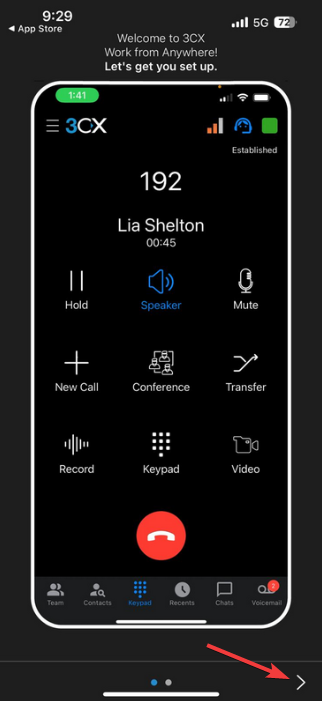
3CX iPhone app during a call, showing the active call screen with Hold, Speaker, Mute, New Call, Conference, Transfer, Record, Keypad and Video buttons.
iPhone — in-call screen with Hold, Speaker, Mute, Transfer, Keypad and more.

Keep your provisioning private

Your QR code and password are personal credentials. Never share them by email, chat or screenshot, and never forward your welcome email to another person. UTS IT will never ask you to send them.

Orientation

Using the phone app

The mobile app puts your Union extension in your pocket. Here is what you will see.

Keypad

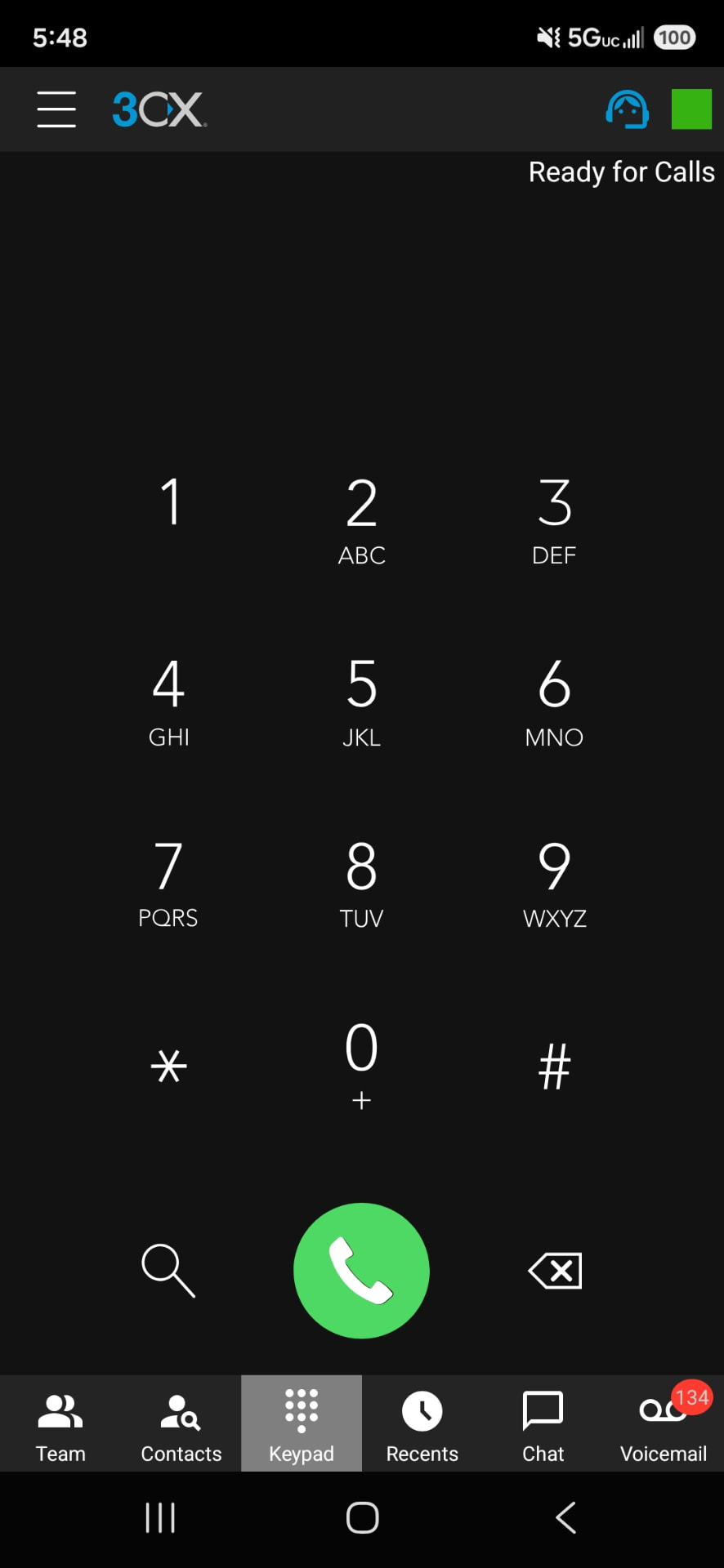
Dial an outside number or a colleague’s extension. On Android, the status line above the keypad reads “Ready for Calls” when you are connected and able to receive calls.

Recents

A list of your recent incoming, outgoing and missed calls. Tap an entry to call back.

Contacts and Team

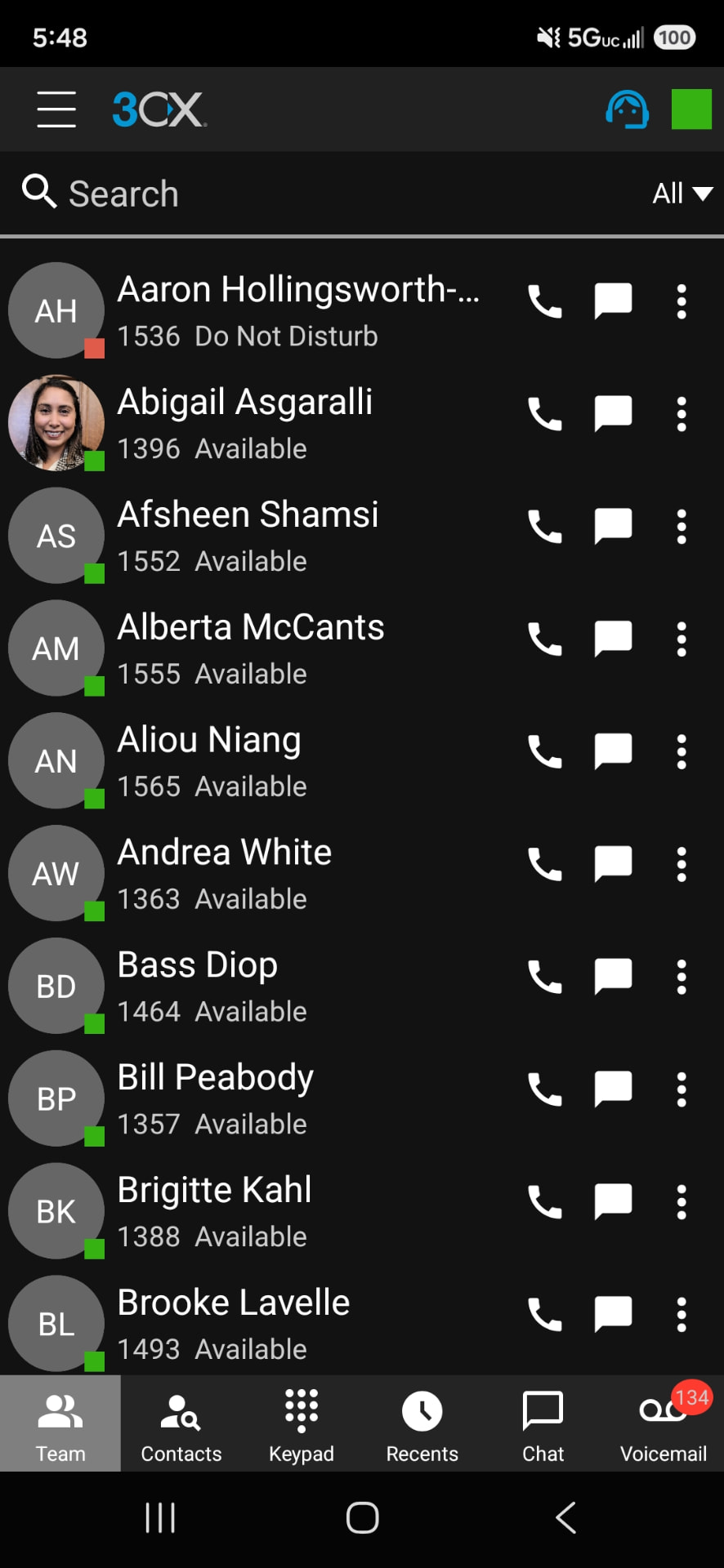
Search colleagues by name or extension and see who is available, away or on a call.

Chat and Voicemail

Written messages to colleagues and your Union voicemail messages, both accessible from the main navigation.
3CX Android app home screen with the dial keypad and a status line reading Ready for Calls above the extension name.
Android — 3CX keypad showing “Ready for Calls”.

If you do not see “Ready for Calls”

The app is not connected. Check your internet connection first, then see Quick Troubleshooting.

Calling

Make and receive calls

Everything below works the same way whether you are on campus or working remotely.

Make an outgoing call

  1. Step 1: Open the keypad and dial the number, or search a colleague by name or extension.
  2. Step 2: Tap the green call button.
  3. Step 3: Your call is placed through the Union phone system and shows Union caller identification.

Receive an incoming call

  1. Step 1: Your device rings and shows the caller’s name or number.
  2. Step 2: Answer to connect, or decline to send the caller to voicemail.
  3. Step 3: Missed calls appear in Recents so you can follow up promptly.

Search a colleague

Start typing a name or extension in the search or contacts view and select the person to call or message.

Mute

Silences your microphone so the other person cannot hear you. The button stays highlighted while muted — unmute before speaking again.

Hold

Pauses the call and plays hold music for the caller. Resume when you are ready.

Conference

Add a third participant to the current call when a colleague needs to join the conversation.

Keypad during a call

Open the in-call keypad to enter menu options, extensions or codes for automated systems.

Recents

Review recent, missed and returned calls, and call back with a single tap.

Blind transfer — send it straight through

Use when you already know the call belongs to a colleague and no introduction is needed.

  1. Step 1: During the call, choose Transfer.
  2. Step 2: Search for the colleague by name or extension.
  3. Step 3: Confirm the transfer — the call moves immediately and you leave the conversation.

Attended transfer — announce it first

Use when the caller should be introduced, or when you need to confirm your colleague is free.

  1. Step 1: During the call, choose Attended Transfer.
  2. Step 2: Search for the colleague and call them; your original caller is placed on hold.
  3. Step 3: Explain who is calling and why.
  4. Step 4: Complete the transfer to connect them — or return to the caller if your colleague is unavailable.
3CX iPhone app during a call, showing the active call screen with Hold, Speaker, Mute, New Call, Conference, Transfer, Record, Keypad and Video buttons.
iPhone — in-call screen with Hold, Speaker, Mute, Transfer, Keypad and more.
3CX Android app home screen with the dial keypad and a status line reading Ready for Calls above the extension name.
Android — 3CX keypad showing “Ready for Calls”.

Messaging

3CX Chat

Chat is built into the same app you use for calls, so quick questions do not need a phone call.

Send a message

  1. Step 1: Open Chat from the main navigation.
  2. Step 2: Start a new chat, or select an existing conversation.
  3. Step 3: Search for your colleague by name or extension and select them.
  4. Step 4: Type your message in the compose box.
  5. Step 5: Send — and keep chat notifications enabled so you see replies promptly.
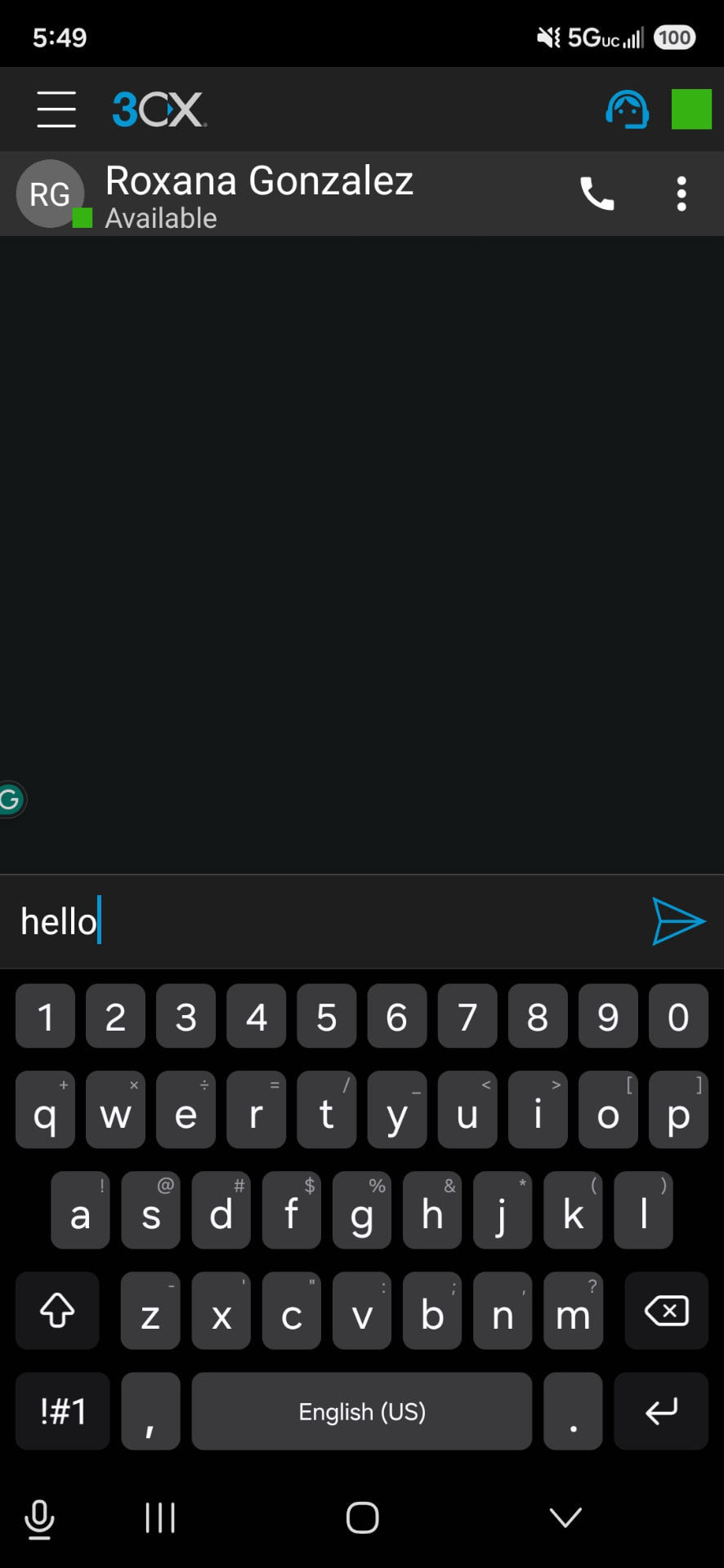
3CX chat conversation screen with the message compose box and send button at the bottom.
Chat — composing a message to a colleague.

Chat actions

  • Archive — move a finished conversation out of your active list without deleting it.
  • Add participants — bring another colleague into the conversation for a small group discussion.
  • Delete — remove a chat you no longer need.
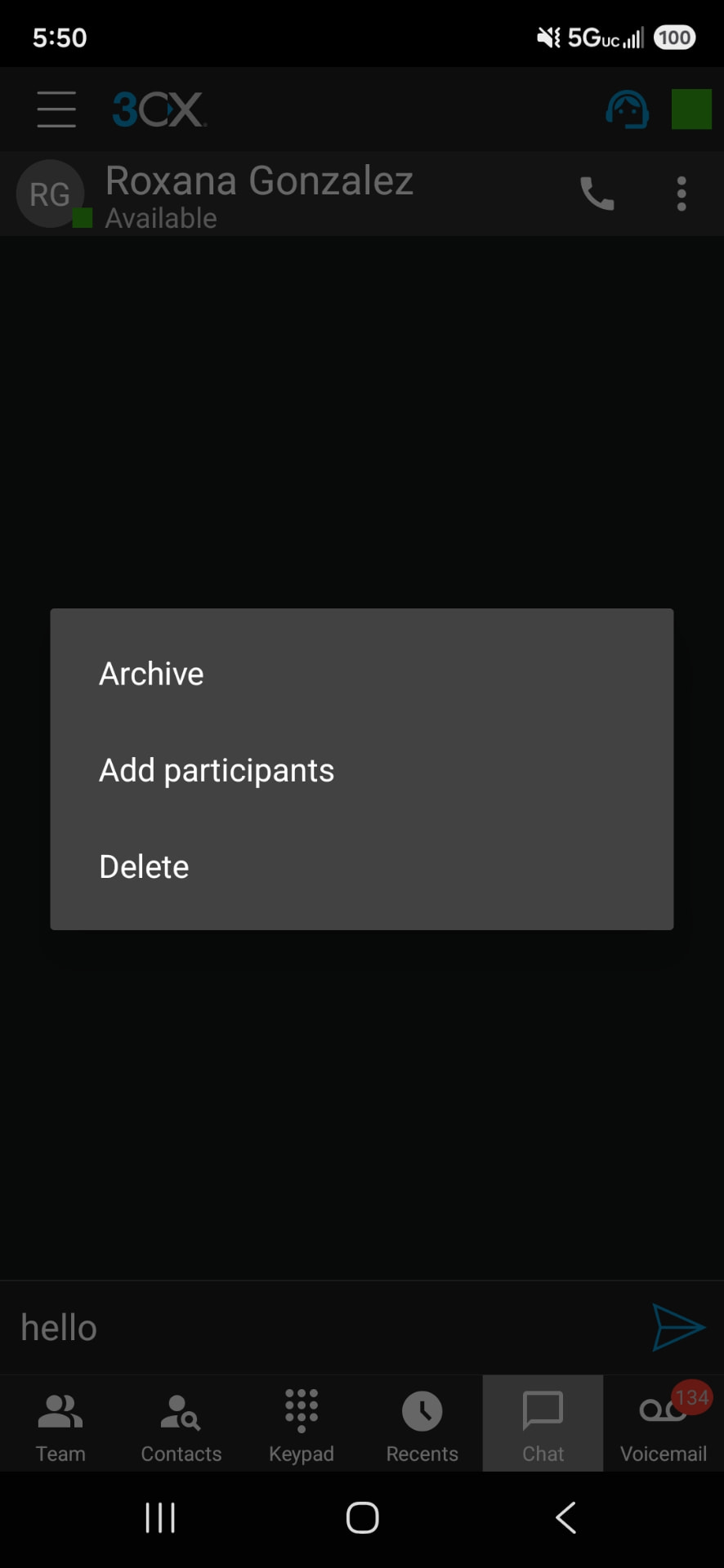
3CX chat actions menu listing Archive, Add participants and Delete options.
Chat — the actions menu showing Archive, Add participants and Delete.

Use the right channel

Use chat for quick exchanges and simple questions. Use email when you need a durable written record or need to explain something in detail. Pick up the phone or start a Zoom meeting when a conversation will be faster and clearer than typing.

Presence

Availability and status

Your status tells colleagues whether to call you now or follow up later. Set it deliberately each day.

Available

You are working and able to take calls. This should be your normal setting during scheduled working hours.

Away

You are stepping away briefly. Colleagues know to expect a delayed response.

Do Not Disturb

Calls will not ring your device. Use it for focused work or meetings — and switch back to Available afterwards.

Lunch

You are on a scheduled break and will return shortly.
3CX Team view listing colleagues with their extensions and availability status indicators.
Team directory — colleague list with availability indicators.

Before publishing this guide publicly

The Team screenshot above shows real staff names, extensions and a staff photo. If this guide is made public, restrict access or replace it with a sanitised capture.

Keep your calendar and status in step

Colleagues rely on both. If your calendar shows a meeting, your 3CX status should reflect it — and when the meeting ends, set yourself back to Available. Each status is labelled in text as well as by color, so it is readable at a glance for everyone.

Messages

Voicemail

Voicemail catches the calls you cannot take. Set it up once, then check it as part of your daily routine.

Record your greeting

  1. Step 1: Open Voicemail from the app’s main navigation.
  2. Step 2: Choose the option to record or change your greeting.
  3. Step 3: State your name, your department and when callers can expect a reply.
  4. Step 4: Save the greeting and play it back to confirm the recording is clear.

Listen and respond

  1. Step 1: New messages appear in the Voicemail list with the caller and time.
  2. Step 2: Play the message, then call back or delete it once handled.
  3. Step 3: Check voicemail at the start of the day, after meetings and before you finish work.

Working remotely

Voicemail is not a substitute for being reachable. During scheduled hours, answer calls where you can and return voicemails promptly.

Standards

Hybrid work best practices

Availability and professionalism

  • Be reachable during your scheduled working hours, on campus or remote.
  • Use 3CX for Union work calls rather than a personal line.
  • Keep your 3CX status current so colleagues know when to reach you.
  • Use approved institutional systems; do not forward Union calls to unapproved personal services.

Sound and setting

  • Use a headset where practical for clearer audio and fewer distractions.
  • Protect confidential conversations — take sensitive calls in a private space.
  • Before your first hybrid day, test your microphone, speaker, notifications and an incoming call.

Security

  • Never share your provisioning QR code, password or other credentials with anyone.
  • Secure every device that runs 3CX with a passcode or biometric lock.
  • Keep your device operating system and the 3CX app updated.

If something changes

  • Contact UTS IT before or immediately after replacing a phone so your extension can be re-provisioned.
  • Report a lost or stolen device that has 3CX installed right away.

Support

Quick troubleshooting

Work through the checks below. If the issue continues, contact UTS IT — include your extension and what you have already tried.

Contact

Need help?

UTS IT supports staff directly and escalates to our vendor when needed.

UTS IT Help Desk

helpdesk@utsnyc.edu

First stop for provisioning, setup and any 3CX problem.

Marcus Mortise

(212) 280-1462

Call for urgent phone issues during business hours.

Harry Iliadis — ATG

hiliadis@atgnet.com

Vendor support, normally engaged by UTS IT.

What to include when you write

Your name and extension, the device you are using, what you expected to happen, what happened instead, and the steps you already tried. Never include your password or a picture of your QR code.

Self-service

Ask the 3CX Help Assistant

A small built-in helper with curated answers from this guide. It runs entirely in your browser — it has no access to your account, stores nothing and collects no data. If it cannot answer reliably, it will point you to the Help Desk.

3CX Help Assistant

Built-in answers only — no account access, no data collection

Assistant:

Hello. I answer common questions about using 3CX at Union. Ask about setup, transfers, ringing problems, chat, status, or how to reach support.

Reference

About this guide / vendor references

Union’s 3CX environment

  • 3CX PBX V20 Update 7 (20.7.0.5).
  • Android app observed at V5.6, Build 5.
  • Staff are provisioned by UTS IT through a welcome email containing a personal QR code.

Screenshots and versions

  • All screenshots in this guide were captured in Union’s own 3CX environment on iPhone and Android.
  • Web Client images from newer 3CX releases do not match V20 Update 7 and are deliberately not used.
  • Vendor documentation from 3CX is a secondary reference; this guide reflects Union practice.

Guidance in this document

This guide describes Union practice for hybrid work and does not replace Human Resources policy. Where the two differ, HR policy governs.